Client Portal Frequently Asked Questions
If you do not see your question in this list below, please reach out to your specialist for assistance:
- A specialist created my record, then sent me an invitation to use the Client Portal. Where do I start?
- I forgot my username/password
- Why does my password need to be "Great"?
- How do I log out of my record?
- I only see a Global or Basic tab when I log into my Client Portal account
- Why don't I see many options when I'm logged in?
- My information is not updating in the Client Portal / The Portal is acting strangely / I am receiving error messages
- What is the Application Wizard?
- How can I see what is left to do before submitting a program application?
- Where can I learn more about the eLogic Genesis Client Portal?
A specialist created my record, then sent me an invitation to use the Client Portal. Where do I start?
You will receive an email from no-reply@elogicgenesis.com. Be sure to check your spam folder if you do not see this email.
Open the email, click the link, and follow the prompts to create your account.
I forgot my username/password
Your Username is the email address you provided to your specialist -or- the email address you used when you created your record.
- If you have forgotten your password, go to the login screen at https://app.elogicgenesis.com/login and click the Forgotten Password link.
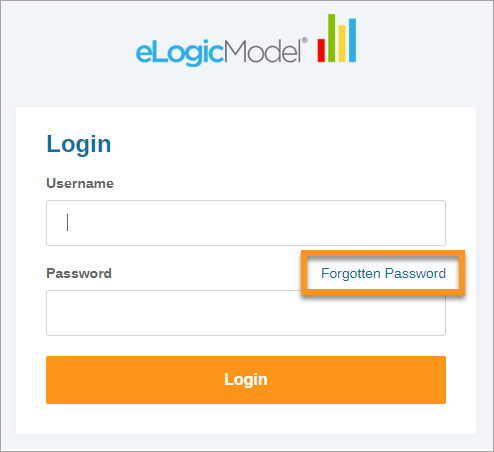
- Enter your User Name in the text field. Your user name is the email address you provided to your specialist or used when you first created your record
- Click Request Reset
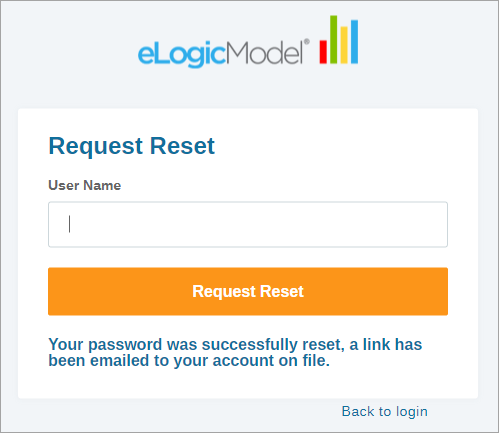
- An email will be sent to the email address entered in your record with a link to reset your password.
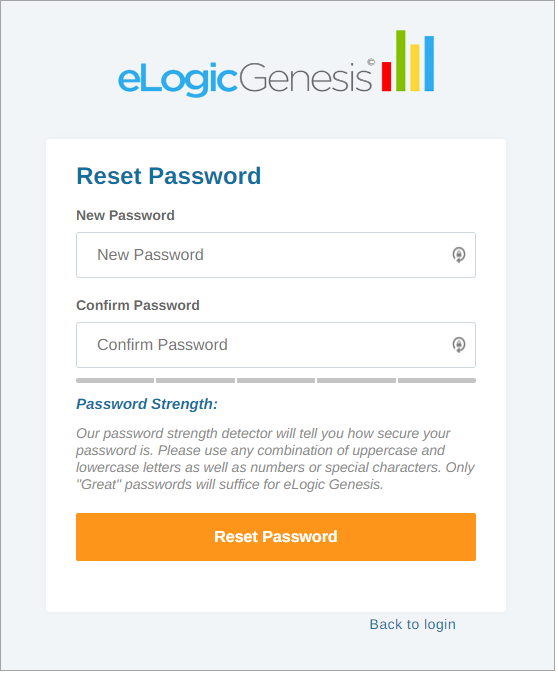
- Click the link in the email to return to eLogic Genesis, enter your new password, and click Reset Password. Please note that your password must be indicated as "Great" by containing any combination of uppercase and lowercase letters as well as numbers or special characters.
- Log in using your email address new password.
Why does my password need to be "Great"?
Please see this article for additional information regarding your password strength.
How do I log out of my record?
- Click/tap the
 User Menu in the top right corner
 - Click/tap Logout from the drop-down menu
I used a link to create my record and I only see a Global or Basic tab when I log into my Client Portal account
If your record contains a single tab that says "Global" or "Basic", click (desktop users) or Tap (mobile users) the  Agency Home icon in the top left corner.
|
Desktop
|
|
Mobile
|
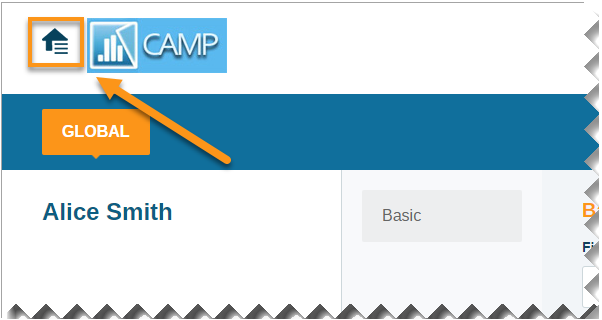

A side panel will open and read "Select Agency":
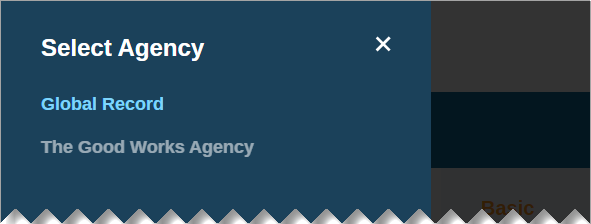
- If the only option shown is "Global Record", you have not yet been assigned a specialist.
- You will receive an email notification when one has been assigned to you.
- When you receive that email, log into your account again. You should be brought to your full record.
- If you login again and see the same page, proceed to the next bullet point and follow those instructions.
- If you see your local CAA listed, click/tap the name of the CAA to be brought to your full record.
Why don't I see many options when I'm logged in?
Each organization that uses eLogic Genesis uses it differently. How they have decided to set up the Client Portal for their clients to access may differ from what is shown throughout the help center. If you do not see an option from the help center when you are logged into the Client Portal, it is because the organization has disabled that feature.
My information is not updating in the Client Portal / The Portal is acting strangely / I am receiving error messages
You will sometimes need to refresh the webpage to troubleshoot issues:
|
Desktop
|
Mobile
|
 refresh button in your web browser (to the left of the address bar)
If the issue is not resolved after refreshing the webpage, contact your local CAA and explain the issue with as much detail as possible.
What is the Application Wizard?
The eLogic Genesis Application Wizard is a tool that will assist you in collecting some demographic information you may need for your application.
Please note: The Application Wizard will not submit your application for you, it will simply help you collect the information you need to fill out the application. Once you exit the Wizard, you will need to follow these steps to complete, then submit, your application.
How can I see what is left to do before submitting a program application?
Follow these steps to learn how to see what is left to do before you can submit your program application.
Where can I learn more about the eLogic Genesis Client Portal?
See this article to learn about the basics of the eLogic Genesis Client Portal.