eLogic Genesis Notifications
Table of Contents
- Set Notification Preferences
- Check In-App Notifications
- Clear Individual In-App Notification
- Clear All In-App Notifications
Set Notification Preferences
You can select how you would like to receive notifications for different events when using the eLogic Genesis Client Portal - note that you must have at least one delivery method selected for each notification type:
- In-App Notification (default): When you receive a notification, it will appear in a red circle
 over the user menu icon in the top right corner of eLogic Genesis.
 - Email Notification: The notification will be delivered to you via a system-generated email from no-reply@elogicgenesis.com.
To set your notification preferences
- Click the
 user menu icon in the top right corner
 - From the drop-down menu, click Notification Settings
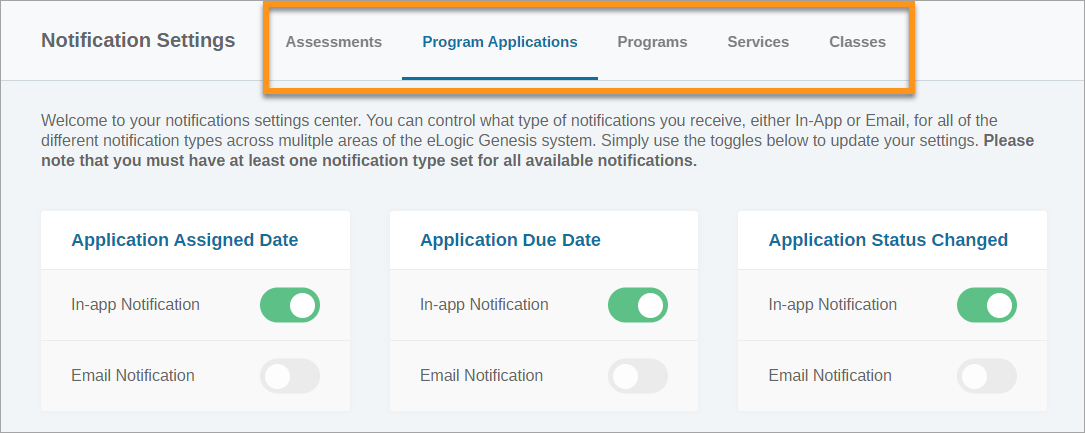
- Use the tabs to advance between the different notification categories
- Select the preferred method(s) of delivery for each notification option by clicking the slide button
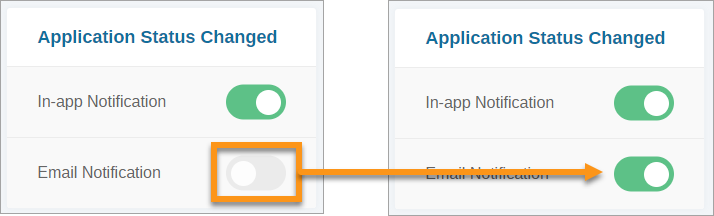
- The system will save automatically with each selection
Check In-App Notifications
When you have an in-app notification, a red circle with a number  will appear over the user menu icon
- Click the user menu icon from the system navigation bar
- From the drop-down menu, click Notifications
- The notifications side panel will appear on the right side of the screen
- Notifications are listed with:
- Notification message
- Date of notification
Clear Individual In-App Notification
- Click the user menu icon from the system navigation bar
- From the drop-down menu, click Notifications
- The notifications side panel will appear on the right side of the screen
- Hover the mouse cursor over the notification you wish to clear
- Green bar with
 checkmark will expand from the right
 - Click the green bar
- Notification cleared
Clear All In-App Notifications
- Click the
 user menu icon from the system navigation bar
 - From the drop-down menu, click Notifications
- The notifications side panel will appear on the right side of the screen
- Under NOTIFICATIONS, click Clear all ✓
- A warning message will appear
- Click Yes to clear all notifications